
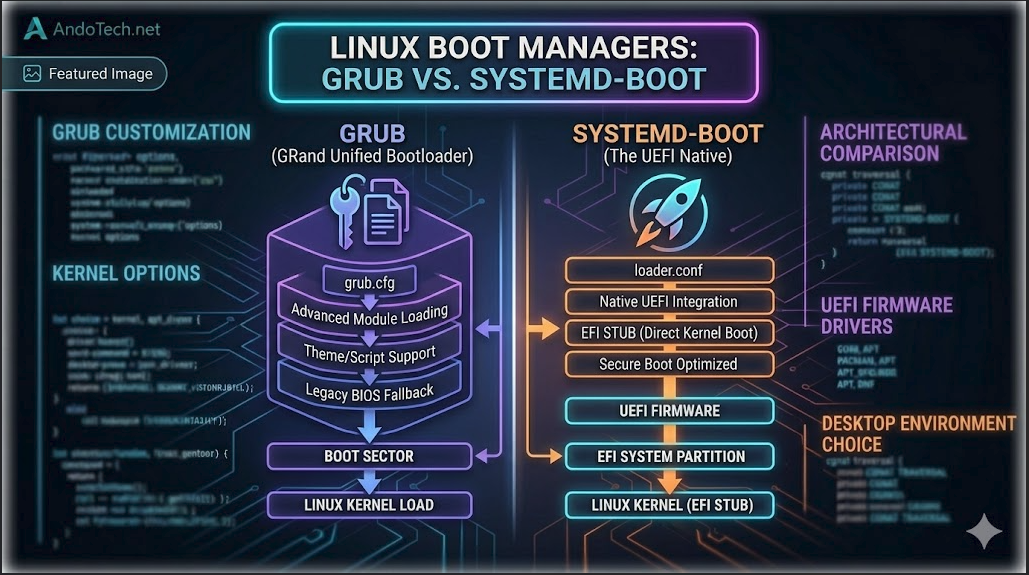
At a Glance: GRUB vs. systemd-boot
| Feature | GRUB | systemd-boot |
|---|---|---|
| Complexity | High (Highly customizable, large codebase) | Low (Minimalist, simple, and clean) |
| Configuration | Complex (/boot/grub/grub.cfg generated via scripts) | Simple (Basic text files per kernel drop-in) |
| Boot Speed | Standard | Slightly faster (Loads EFI binaries directly) |
| File System Support | Can read many filesystems directly (Btrfs, XFS, etc.) | Requires kernels to reside on the EFI System Partition (ESP) |
| Maintenance | Auto-updates via package managers can occasionally break | Incredibly stable; rarely breaks during system updates |
Introduction
When you make the switch from Windows to Linux, one of the first major architectural changes you encounter happens before your desktop even loads. On Windows, the boot process is entirely locked away behind a proprietary black box. On Linux, you have total control over the software that hands the keys to your operating system: The Boot Manager.
If you are installing a modern distribution—like Arch, CachyOS, or Fedora—you are usually asked to make a choice during the installation phase: GRUB or systemd-boot?
Choosing the right one matters because they handle system recovery and multi-booting entirely differently. Let’s break down the mechanics, the pros, and the cons of both.
What Does a Boot Manager Actually Do?
Before diving into the comparison, it helps to understand the chain of command when you press your computer’s power button:
- The Motherboard (UEFI): Your hardware turns on and initializes the Unified Extensible Firmware Interface (UEFI).
- The EFI Partition (ESP): The UEFI looks at a small, FAT32-formatted partition on your drive to find boot instructions.
- The Boot Manager: Instead of launching Linux directly, the UEFI hands control to your chosen Boot Manager. This software presents your boot menu, loads the required kernel components into memory, and spins up the system.
1. GRUB 2: The Swiss Army Knife
The Grand Unified Bootloader (GRUB) is the undisputed veteran of the Linux world. It is incredibly powerful because it operates almost like its own mini-operating system before your main OS even fires up.
The Pros:
- Advanced Filesystem Support: GRUB can read complex filesystems like Btrfs, XFS, and ext4 natively.
- The Ultimate Safety Net: Because it can read filesystems directly, GRUB can boot into historical Btrfs/Snapper system snapshots before loading a broken operating system.
- Superior Dual-Booting: Combined with a tool called
os-prober, GRUB effortlessly detects Windows installations on separate drives and automatically adds them to a clean startup menu. - Highly Customizable: Supports full visual themes, background images, and custom resolutions.
The Cons:
Complexity and Bloat: The configuration codebase is massive. The main configuration file (/boot/grub/grub.cfg) is thousands of lines of machine-generated code that you should never edit by hand.
Slower Boot Times: Because it initializes its own drivers and environment, it adds a noticeable extra second or two to your system startup time compared to lighter alternatives.
2. systemd-boot: The Minimalist Engine
Originally called Gummiboot, systemd-boot is a bare-bones, ultra-lightweight UEFI boot manager. Rather than trying to be a mini-operating system, it acts as a simple text menu that hands off execution directly to the motherboard’s built-in UEFI capabilities.
The Pros:
- Blazing Fast: It contains zero bloat. It passes commands directly to the hardware, resulting in incredibly fast, near-instantaneous boot times.
- Beautifully Simple Configuration: Instead of a massive, unreadable file, configuration is handled by dead-simple text files. Each installed Linux kernel gets its own clean, 4-line
.conffile inside/loader/entries/. - Rock Solid Stability: Because there are fewer moving parts and no custom filesystem drivers, it is incredibly difficult to accidentally break.
The Cons:
- FAT32 Limitations: systemd-boot cannot read complex filesystems. It can only read files located inside your FAT32 EFI System Partition (ESP).
- No Direct Snapper Booting: Because it cannot read Btrfs subvolumes, you cannot boot directly into a read-only Snapper system snapshot from a systemd-boot menu if your kernel lives on a separate partition.
- No Visual Styling: It is strictly a basic text menu. No themes, no custom icons, no graphical backgrounds.
The Verdict: Which One Should You Choose?
- Choose systemd-boot if: You want the absolute fastest, cleanest, and most modern boot experience, you prefer simple text-based configurations, and you intend to keep your system lean.
- Choose GRUB if: You are dual-booting with Windows, or you want an unbreakable system utilizing Btrfs and Snapper snapshots to roll back updates when something goes wrong.
In our next guide, we will dive deep into how to exploit GRUB’s filesystem architecture to link it directly to Snapper, creating a bulletproof system recovery setup that lets you reverse a broken system update with a single click.