
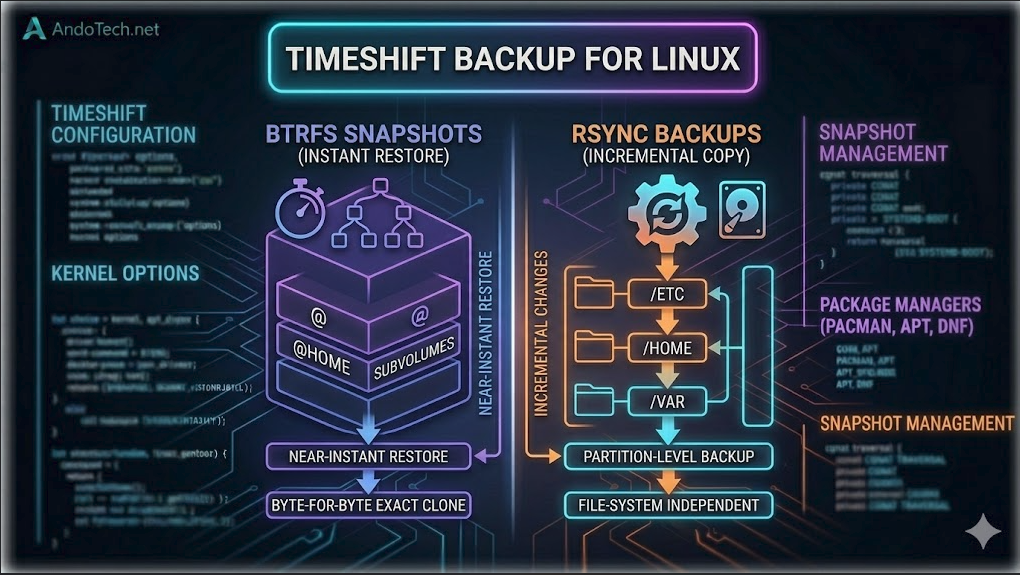
💡 Quick Summary: Safe Timeshift Setup
If you are setting up system snapshots on an Arch-based distribution like CachyOS, keep these three rules in mind:
- System Files Only: Timeshift targets your core operating system configurations, applications, and settings—not your personal files.
- Avoid Btrfs Mode Warnings: Timeshift’s Btrfs mode expects a strict Ubuntu-style subvolume layout (
@and@home). Because CachyOS uses a different scheme, it will fail out of the box. - The Recommendation: Select RSYNC Mode during setup to ensure compatibility across all filesystems, or switch to Snapper if you want native Btrfs snapshot management.
What is Timeshift backup

Timeshift Backup for Linux
What is Timeshift Backup?
Creating reliable backups is crucial for maintaining stability on Linux systems. Timeshift offers a powerful backup solution, providing an easy and effective way to manage system snapshots. Unlike traditional backup tools that back up personal files, Timeshift focuses exclusively on system files and configurations. This ensures your OS settings, desktop environments, and core applications stay completely intact during a restore.
Users can schedule backups effortlessly with Timeshift, choosing daily, weekly, or monthly intervals (though it handles specific times automatically based on when the system is running). When something goes wrong—such as a failed update, a broken configuration file, or an accidental system change—Timeshift lets you roll the entire operating system back to a previous working state.
Important Technical Note for CachyOS / Arch Users
Before configuring Timeshift on an Arch-based system like CachyOS, you must choose the correct snapshot type:
- RSYNC Mode (Recommended for general setups): Backups are copied via rsync and use hard links to save space. This works on any file system (EXT4, XFS, Btrfs).
- BTRFS Mode (Warning): Timeshift’s Btrfs mode requires a specific Ubuntu-style subvolume layout (
@and@home). Standard CachyOS installations use a different Btrfs layout, meaning Timeshift’s native Btrfs mode will not work out of the box. Use RSYNC mode instead, or use Snapper for native Btrfs snapshots.
Installation
To install Timeshift from the Arch User Repository (AUR), open your terminal and run:
paru -S timeshiftIf you prefer to use yay as your AUR helper instead, use this command:
yay -S timeshiftOr by running this command in the terminal to configure your backup drive.
sudo timeshift-gtk