
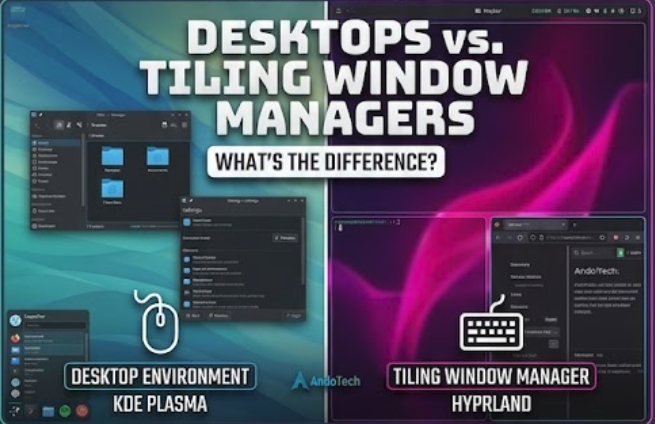
What’s the Difference?
Introduction
When you install a mainstream Linux distribution like Linux Mint or Fedora, you are greeted with a complete, ready-to-use visual interface. You have a taskbar, an application menu, a system tray, and windows that you can drag around with your mouse.
But as you explore the Linux landscape, you will inevitably run into users showing off radically different setups—where windows snap perfectly into grids, panels are completely customized, and the mouse is barely touched.
This brings us to one of the biggest architectural choices you can make for your workspace: Are you using a full Desktop Environment (DE), or a keyboard-driven Tiling Window Manager (TWM)? Let’s break down the mechanics so you can decide which workflow suits your style.
What is a Desktop Environment (DE)?
A Desktop Environment is a complete, all-in-one software suite designed to give you a cohesive user experience out of the box.
Think of it as a pre-built house. It provides not just the walls, but all the integrated furniture you need to live comfortably.
- The Core Parts: A DE bundles a window manager together with a suite of core applications—like a dedicated file manager, text editor, settings panel, system loggers, and a display manager.
- The Workflow: It follows the traditional “stacking” or “floating” window model (similar to Windows or macOS), where application windows overlap each other like papers on a physical desk.
- Examples: KDE Plasma (highly customizable), GNOME (modern and minimalist), and Cinnamon (traditional and familiar).
What is a Tiling Window Manager (TWM)?
A Tiling Window Manager throws out the all-in-one suite and focuses entirely on a single task: automatically arranging your open windows so they never overlap.
Instead of a pre-built house, a TWM is a custom architectural blueprint. It gives you the structural framework, but you choose and install your own furniture (your own file managers, panels, and utilities) piece by piece.
- The Core Parts: It is only a window manager. It does not come with a default file browser, a start menu, or a system settings app. You choose your own preferred tools and link them together using configuration text files.
- The Workflow: Windows automatically “tile” to fill 100% of your screen real estate in a clean, mathematical grid. It relies heavily on keyboard shortcuts rather than mouse clicks to launch applications, resize spaces, and switch between virtual workspaces.
- The Modern Standard: Traditional window managers were flat and strictly 2D, but modern compositors like Hyprland utilize hardware acceleration to bring fluid animations, rounded corners, and beautiful visual effects to the tiling workflow.
Side-by-Side: The Core Trade-Offs
| Feature | Desktop Environment (e.g., KDE Plasma) | Tiling Window Manager (e.g., Hyprland) |
| Out-of-the-Box | Fully complete; ready to use immediately. | Bare-bones; requires manual configuration. |
| Window Layout | Floating/Stacking (Windows overlap). | Tiling (Windows auto-grid to fill space). |
| Control Method | Heavy mouse usage, traditional menus. | Keyboard-driven shortcuts, maximum speed. |
| Resource Usage | Moderate to high (runs background services). | Extremely low, lightweight, and efficient. |
💡 The Pro-Tip: Build a Hybrid Safety Net
If you are transitioning from Windows or are relatively new to intermediate Linux custom configurations, jumping 100% into a pure tiling window manager can be risky. Certain applications—especially complex remote access tools or legacy software—don’t always respond well to a window manager’s automatic grid layout and can occasionally freeze or misbehave.
The Solution: Don’t choose between them—install both.
By installing a tiling window manager like Hyprland on top of a robust desktop environment like KDE Plasma, you build an instant safety net. When you boot your machine to the login screen, you can choose which environment to enter. If a specific app acts up or you encounter a configuration bug in your tiling environment, you can easily log out, boot right into your rock-solid DE, and get straight back to work without getting stranded in a terminal.
How to Choose Your Workflow
The choice comes down to how much time you want to spend tinkering versus how you want your desktop to behave under load:
- Stick with a Desktop Environment if: You want a polished, reliable workspace where everything “just works” out of the box, and you prefer using a mouse to manage your application windows.
- Step up to a Tiling Window Manager if: You want absolute control over every pixel on your monitor, want to maximize your typing efficiency by keeping your hands on the keyboard, and enjoy building a lightweight, high-performance interface from the ground up.
If you are curious about taking the leap into the world of keyboard-driven efficiency, check out our full, step-by-step [Installation and Configuration Guide for Hyprland] to see exactly how to build a rock-solid configuration.