
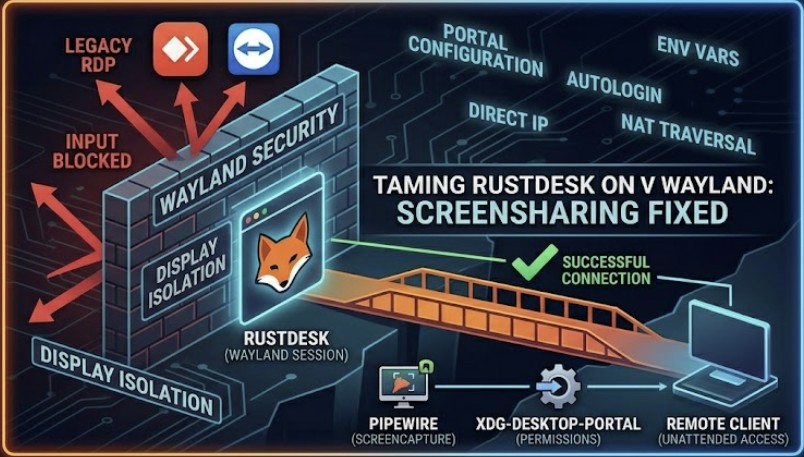
💡 Quick Fix: RustDesk on Wayland
If you are struggling with black screens, frozen mice, or connection loops, try these three steps first:
- Install Correct Portals: Ensure
pipewire,wireplumber, and your environment-specific portal (e.g.,xdg-desktop-portal-hyprlandor-kde) are active. - Enable Unattended Access: Edit your portal config file (e.g.,
~/.config/xdg-desktop-portal/hyprland-portals.conf) to setallow_token_by_default=trueto bypass constant permission prompts. - Use Native Packages: Install the native system package (e.g.,
rustdesk-binfrom the AUR) instead of Flatpak to ensure the application has the necessary/dev/uinputpermissions to simulate mouse and keyboard input.
Here is the complete, cohesive, ready-to-publish article. It brings together the backend Wayland configurations, the local environment tweaks, and the network troubleshooting fixes for when connections stall even when you are both active at the terminal.
Introduction
In our last post, we looked at how the Linux ecosystem’s massive migration to Wayland has turned the remote desktop landscape into a bit of a minefield. Security sandboxing is great for protecting your local data, but it throws a massive wrench into tools that need to capture your screen and inject remote mouse clicks.
If you’ve thrown your hands up trying to get RustDesk to play nice under a modern Wayland compositor like Hyprland or a premium environment like KDE Plasma, you aren’t alone. Unattended access often triggers constant confirmation prompts, or worse, gives you a completely frozen screen.
Thankfully, you don’t have to admit defeat and drop back to ancient X11. With a few precise backend adjustments, you can bridge the gap and make RustDesk incredibly reliable. Here is the step-by-step survival guide to tuning your remote pipeline.
The Root Problem: The Missing “Portals”
Under Wayland, an application cannot just look at your display. It has to politely ask the display server for a video feed via a system service called PipeWire.
To do this legally without triggering security violations, it relies on a middleman translator called an XDG Desktop Portal. If RustDesk cannot find the exact portal matching your specific workspace, it fails silently, resulting in a black screen or an infinite connection loop.
Step 1: Install the Correct Portal Packages
First, you need to ensure your Linux distribution has the precise backend services installed. On cutting-edge, Arch-based systems like CachyOS, you can pull the required tools directly via your package manager or the AUR.
Open your terminal and make sure you have the essential packages active:
Bash
# For Hyprland Users:
sudo pacman -S pipewire wireplumber xdg-desktop-portal-hyprland xdg-desktop-portal-gtk

# For KDE Plasma Users:
sudo pacman -S pipewire wireplumber xdg-desktop-portal-kde
⚠️ Important Note: Hyprland requires
xdg-desktop-portal-hyprlandto capture the screen, but it doesn’t include a default file picker. Installingxdg-desktop-portal-gtkalongside it serves as the perfect fallback layout.
Step 2: Set the Essential Environment Variables
If you are launching a custom tiling window manager setup, your system needs to explicitly know it is running a Wayland session, otherwise applications will try to look for legacy X11 hooks.
Add these lines directly to your system configuration environment files (such as your hyprland.conf or your global /etc/environment profile):
Plaintext
env = XDG_SESSION_TYPE,wayland
env = XDG_CURRENT_DESKTOP,Hyprland
env = XDG_SESSION_DESKTOP,Hyprland
(If you are running KDE, replace Hyprland with KDE). This tiny adjustment tells RustDesk exactly which portal backend it needs to call when a remote user attempts to initiate a screen-share.
💡 Pro-Tip: Fixing the “Local Confirmation” Headache
One of the most frustrating things about running RustDesk on a modern Wayland desktop is that even if your security passwords match, Wayland will still pop up a physical window on the host machine asking: “An application requested access to remotely control. Which screen would you like to share?”
If you are trying to connect to a machine remotely while sitting on the other side of town, you can’t exactly reach over and click “Allow.”
The Unattended Workaround:
To bypass the constant permission prompts and allow true, seamless remote management, you need to configure your portal’s saving behavior.
Create or edit your portal configuration file at ~/.config/xdg-desktop-portal/hyprland-portals.conf (or the equivalent file for your environment) and ensure the restore tokens are permitted:
Plaintext
[preferred]
default=hyprland;gtk
[screencast]
allow_token_by_default=true
This tells the compositor to remember your remote access client’s authorization token after the initial handshake, allowing you to connect unattended without requiring a physical mouse click on the machine’s end every single time.
🛠️ Solving the Connection Roulette (When it STILL Fails)
Sometimes, even when both you and the person on the other end (like a family member) are actively sitting in front of your computers with open screens, RustDesk will still drop a frustrating, endless “Connecting…” spin. When this happens, you are dealing with Connection Roulette, which usually boils down to display server locks or network routing bottlenecks.
1. The Login Screen Trap (SDDM/GDM)
- The Problem: If the remote computer has just rebooted and is sitting at the visual login screen, Wayland hasn’t actually started your user session yet. RustDesk’s background service cannot hook into a display that doesn’t exist yet, leaving the caller stranded.
- The Fix: For true unattended access, you either have to enable Display Manager Autologin in your system settings (letting the machine boot directly into the desktop, then using a script or shortcut to immediately lock the screen for security), or run the connection while a user is physically at the machine to type the initial password.
2. Screen Sleep and Lockouts
- The Problem: If the remote machine’s monitor goes to sleep or power-saves, Wayland often completely suspends the PipeWire screencast stream. When you try to connect, RustDesk cannot wake the graphical system up remotely, resulting in a black screen.
- The Fix: In your power management settings, set the display to “Turn Off Screen: Never” when plugged into wall power, and rely strictly on a basic screen locker or blanking wrapper to secure the monitor without shutting down the display server hooks.
3. The Overloaded Public Server Bottleneck
- The Problem: By default, RustDesk routes connection handshakes through its free, public public servers (
rs-ny.rustdesk.com, etc.). Because these public servers handle massive global traffic, your connection will randomly time out or hang, even if both of you are actively waiting at your screens. - The Fix: Bypass the public infrastructure entirely. If you connect frequently, setting up a personal Self-Hosted RustDesk Server (using an ultra-lightweight Docker container on a cheap VPS or a local home server) drops your connection latency to near-zero and eliminates public server timeouts permanently.
4. NAT Traversal & ISP Blocks
- The Problem: Many residential internet routers or strict ISP firewalls use Carrier-Grade NAT (CGNAT). If your router or the remote router completely hides your true public IP, RustDesk’s public server cannot find a clear network path to bridge the two endpoints together.
- The Fix: Enable Direct IP Access in the RustDesk network settings, and open Port 21118 on your host router’s firewall. Alternatively, establishing a lightweight virtual private network between the two machines using a tool like Tailscale gives RustDesk a direct, private highway to communicate over, completely skipping public internet routing issues.
5. The Flatpak Permissions Glitch
- The Problem: If RustDesk was installed via Flatpak rather than a native package, the sandboxed app might be completely blocked from accessing
/dev/uinput—the system layer required to simulate mouse clicks and typing. You’ll see the screen, but your mouse will feel dead. - The Fix: Stick to native system packages (like
rustdesk-binfrom the Arch User Repository) which automatically register a root systemd service, granting the application the raw system permissions it needs to inject inputs smoothly over Wayland.
The Verdict
Is cross-platform remote desktop on Linux still more complex than it used to be under Windows or old X11? Absolutely. But by aligning PipeWire, your system Environment Variables, the proper XDG Portals, and knowing how to navigate the public routing server bottlenecks, RustDesk transforms from a total gamble into a rock-solid tool.
Keep these configurations in your technical toolkit, and you’ll never have to worry about being locked out of a modern Linux workspace again.