
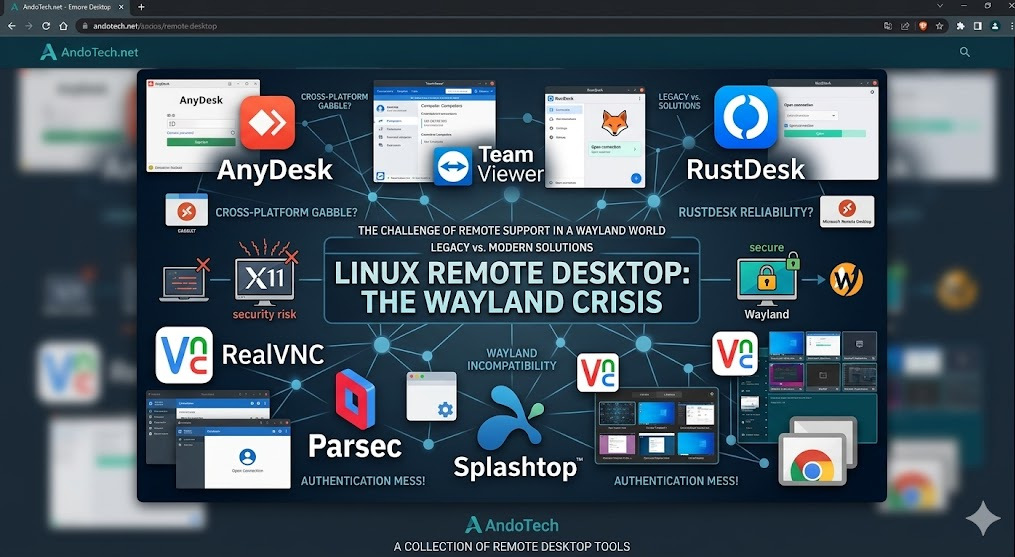
💡 Quick Take: Why Remote Support is Broken on Wayland
If your remote desktop tools are showing black screens or frozen mice, it comes down to modern security changes:
- Strict Security Isolation: Wayland sandboxes windows so applications can no longer freely capture your screen or inject mouse clicks without explicit system permission.
- The X11 Escape Hatch: If legacy tools like AnyDesk or TeamViewer fail, you can instantly fix them by switching your desktop session from Wayland back to X11 (Xorg) at the system login screen.
- The Modern Fix: To use next-gen tools like RustDesk, you must explicitly install and configure
xdg-desktop-portalbackends to give the software legal access to your display server.
Introduction
For over three decades, Linux graphical interfaces relied on a piece of foundational software called X11 (or Xorg). It handled drawing windows on your screen, tracking your mouse clicks, and managing input. But X11 is ancient, bloated, and fundamentally insecure.
Enter Wayland—the modern, lightweight, secure successor that has now become the default display protocol across almost all major Linux distributions, including Fedora, Ubuntu, and cutting-edge Arch-based systems like CachyOS.
While Wayland makes the desktop smoother, faster, and far more secure, it has inadvertently caused a massive crisis for system administrators, tech support professionals, and anyone who relies on remote desktop access.
Why Wayland Broke Remote Support
Under the old X11 system, building a remote control application (like TeamViewer or AnyDesk) was simple. X11 acted like a giant open window: any application could freely see, capture, and inject mouse clicks into any other application running on the screen.
Wayland changes the rules entirely by introducing strict security isolation.
- Total Sandbox Security: Under Wayland, one application cannot see or interact with another application’s window without explicit permission. Your web browser doesn’t know your file manager is open, and a remote access tool cannot simply “see” your screen.
- No Direct Input Injection: Wayland blocks unauthorized applications from hijacking your mouse pointer or keyboard inputs.
- The Problem: The exact security features that protect your desktop from malware are the exact features that break traditional remote control software.
The Current State of Remote Tools: A Tech Support Minefield
If you are trying to provide remote assistance or connect to a cross-platform machine today, the software landscape feels like a massive gamble:
1. Legacy Giants (AnyDesk & TeamViewer)
- The Reality: They were built from the ground up for X11. While they have tried to introduce Wayland support, connections frequently result in black screens, frozen mouse pointers, or an absolute refusal to register keyboard inputs. They are practically unusable on a modern Wayland host without dropping back to an X11 session.
2. Modern Contenders (RustDesk)

- The Reality: RustDesk is fantastic, lightweight, and uses incredibly fast modern code. However, under Wayland, it has to rely on a middleman system called PipeWire and xdg-desktop-portal to handle screen sharing. If your specific Linux distribution or window manager doesn’t have those portals perfectly configured, RustDesk will run into permission errors, making it a roll of the dice.
3. Native Linux Solutions (Wayvnc & GNOME/KDE Built-ins)
- The Reality: Desktop environments have started building their own native remote servers (like RDP support built directly into GNOME and KDE Plasma). These work well Linux-to-Linux, but cross-platform support (connecting from Windows to control a Linux machine smoothly) remains incredibly clunky to configure.
💡 The Remote Tech Survival Guide
If you are a beginner-to-intermediate user who needs reliable remote access right now, you cannot afford to play roulette with your configuration files. Here is how to survive the transition:
- Use the X11 Escape Hatch: If you must use a traditional tool like AnyDesk or a specific remote suite to help someone, do not fight Wayland. Log out of your system, click the gear icon on your login screen, and switch your desktop session from Wayland to X11 (Xorg). Your tools will instantly start working again exactly like they used to.
- Master the Portals: If you want to use RustDesk on a Wayland environment, ensure you have
xdg-desktop-portaland your specific desktop’s portal (likexdg-desktop-portal-kdeorxdg-desktop-portal-hyprland) installed and running. This gives RustDesk the legal “permission” it needs to see your screen.