
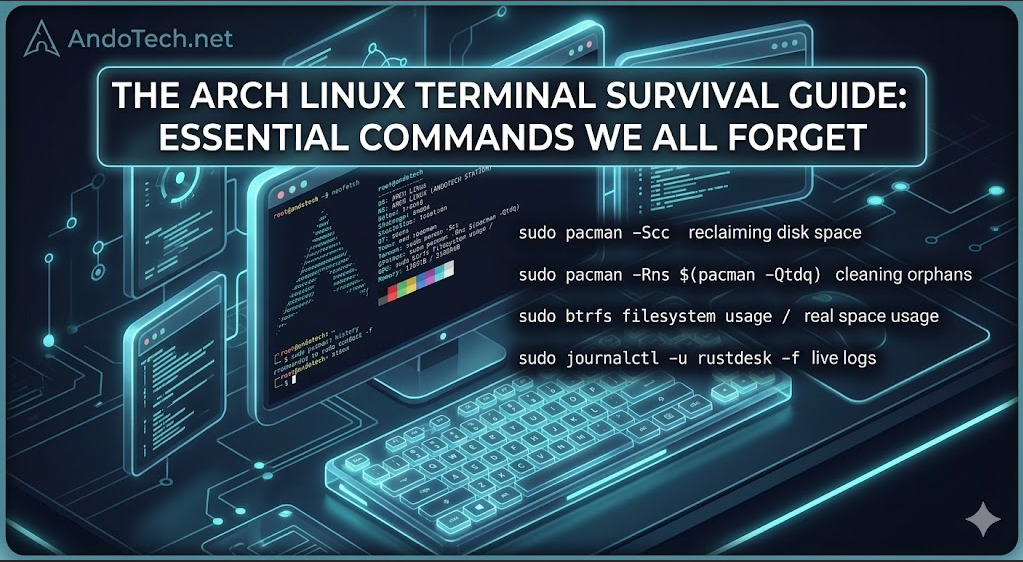
💡 Quick Reference: Core Survival Commands
No one memorizes every single command string. Keep these core maintenance blocks bookmarked for quick system management:
- Package Cleanup: Instantly free up disk space by clearing the package cache (
sudo pacman -Scc) and wiping unneeded orphan dependencies (sudo pacman -Rns $(pacman -Qtdq)). - Btrfs & Storage: Check your true, raw disk space usage accurately using
sudo btrfs filesystem usage /rather than relying on standarddfreadouts. - Troubleshooting Logs: Isolate system errors instantly from your current boot session using
sudo journalctl -b -p 3to filter out background noise. - Network Listening: View active network port allocations and connected software services with
sudo ss -tulpn.
Introduction
The Arch Linux command line is incredibly powerful, but let’s be honest: nobody memorizes everything. Between obscure pacman package manager flags, systemd troubleshooting syntaxes, and the specific layouts required for modern copy-on-write filesystems like Btrfs, it’s completely normal to blank on a command from time to time.
Whether you are running a pure Arch setup or a high-performance distribution like CachyOS, you don’t need to keep a dozen browser tabs open to look up basic syntax. Keep this practical cheat sheet bookmarked right here on your workbench. Here are the essential terminal commands you will actually use to maintain, clean, and troubleshoot your system.
(The rest of your command sections drop in perfectly right under this!)
Do you want to hit the ground running and create a matching featured image for this one too while you’re at the terminal?
Here is the complete, unified post with your perfected title. It’s ready to copy and paste straight into a new WordPress page as your ultimate personal and community cheat sheet:
The Arch Linux Terminal Survival Guide: Essential Commands We All Forget
Introduction
The Arch Linux command line is incredibly powerful, but let’s be honest: nobody memorizes everything. Between obscure pacman package manager flags, systemd troubleshooting syntaxes, and the specific layouts required for modern copy-on-write filesystems like Btrfs, it’s completely normal to blank on a command from time to time.
Whether you are running a pure Arch setup or a high-performance distribution like CachyOS, you don’t need to keep a dozen browser tabs open to look up basic syntax. Keep this practical cheat sheet bookmarked right here on your workbench. Here are the essential terminal commands you will actually use to maintain, clean, and troubleshoot your system.
📦 1. Arch & CachyOS Package Management (Pacman & AUR)
We all know how to run a basic system upgrade, but some of the deep-cleaning and search commands use flags that look like absolute alphabet soup.
- Clean out the package cache (Free up disk space):Bash
sudo pacman -SccWhat it does: Removes all cached package files that are downloaded during updates. Great for instantly reclaiming gigabytes of drive space if your root partition is getting full. - Find and remove “orphan” packages:Bash
sudo pacman -Rns $(pacman -Qtdq)What it does: Finds packages that were installed as dependencies for other software but are no longer needed by anything else on your system, and wipes them out cleanly along with their configuration files. - Search for a package in the official repositories:Bash
pacman -Ss package_name
💾 2. Btrfs Filesystem & Snapshot Operations
If you are running a modern Btrfs layout, you get incredible stability and instant backups—but the subvolume syntax is notoriously easy to mix up.
- List all active subvolumes on your drive:Bash
sudo btrfs subvolume list / - Check the real, raw disk space usage of a Btrfs drive:Bash
sudo btrfs filesystem usage /Why you need it: Standard commands likedf -hoften report inaccurate free space on Btrfs systems because of how snapshots and background compression work. This command gives you the real ground truth. - Manually trigger a filesystem “trim” (Excellent for SSD health):Bash
sudo fstrim -va
⚙️ 3. Systemd Troubleshooting & Logs
When a background service breaks, or a remote connection tool isn’t responding, systemd is where you go to find out exactly why.
- View the live, real-time log output for a specific service:Bash
sudo journalctl -u rustdesk -fWhat it does: The-uspecifies the unit name (likerustdesk), and the-fmeans “follow,” printing new log events to your screen the exact second they happen. - Check the system logs for errors from only the current boot:Bash
sudo journalctl -b -p 3What it does: Filters out all the harmless background noise and shows you only severe system errors (-p 3) that have occurred since you last turned your machine on. - Check if a specific background service is running or blocked:Bash
systemctl status service_name
🌐 4. Network & Remote Port Checking
Before trying to connect to a remote machine, you often need to check if the network ports are actually open and listening on your end.
- See which applications are listening on your network ports:Bash
sudo ss -tulpnWhat it does: Displays a clean table of every active network connection, showing exactly which port numbers (like RustDesk’s critical ports) are open and which software service owns them. - Quickly check your machine’s current local IP address:Bash
ip a
💡 Quick Tips for Terminal Mastery
- The ultimate fallback: If you remember a command but can’t remember its specific flags, append
--helpor typeman command_nameto open its official manual page. - Search your history: Press
Ctrl + Rin your terminal and start typing any word from a command you ran last week—the shell will instantly pull up the exact line for you!